GliaStory Client guide (short)
Updated 2026-11-04 · app.gliastory.com
The basics
GliaStory is GliaCloud's ad film service. The AI suggests directions and draws the storyboard; once the storyboard is settled you see the price and delivery date, and after you order, the production team makes the film. Go to app.gliastory.com.
| Stage | What you do | Cost |
|---|---|---|
| Explore | Add your materials and pick one of three directions | Free |
| Storyboard | Check and edit each frame | Free |
| Confirm | Check the quote and delivery date, then order | Charged only when you order |
| Review | Mark changes on the first draft, then approve | Included in the order |
| Final | Download the film, or add other sizes and languages | Extra versions charged separately |
Not sure where to start? Open “Samples” in the sidebar to see every stage of a real project, the finished film and its price (view only).
Sign up and Home
- Open the invite link your GliaCloud sales representative sent you and sign up with your email address.
- The first time you sign in, enter your company details (phone number required). Your account is active straight away.
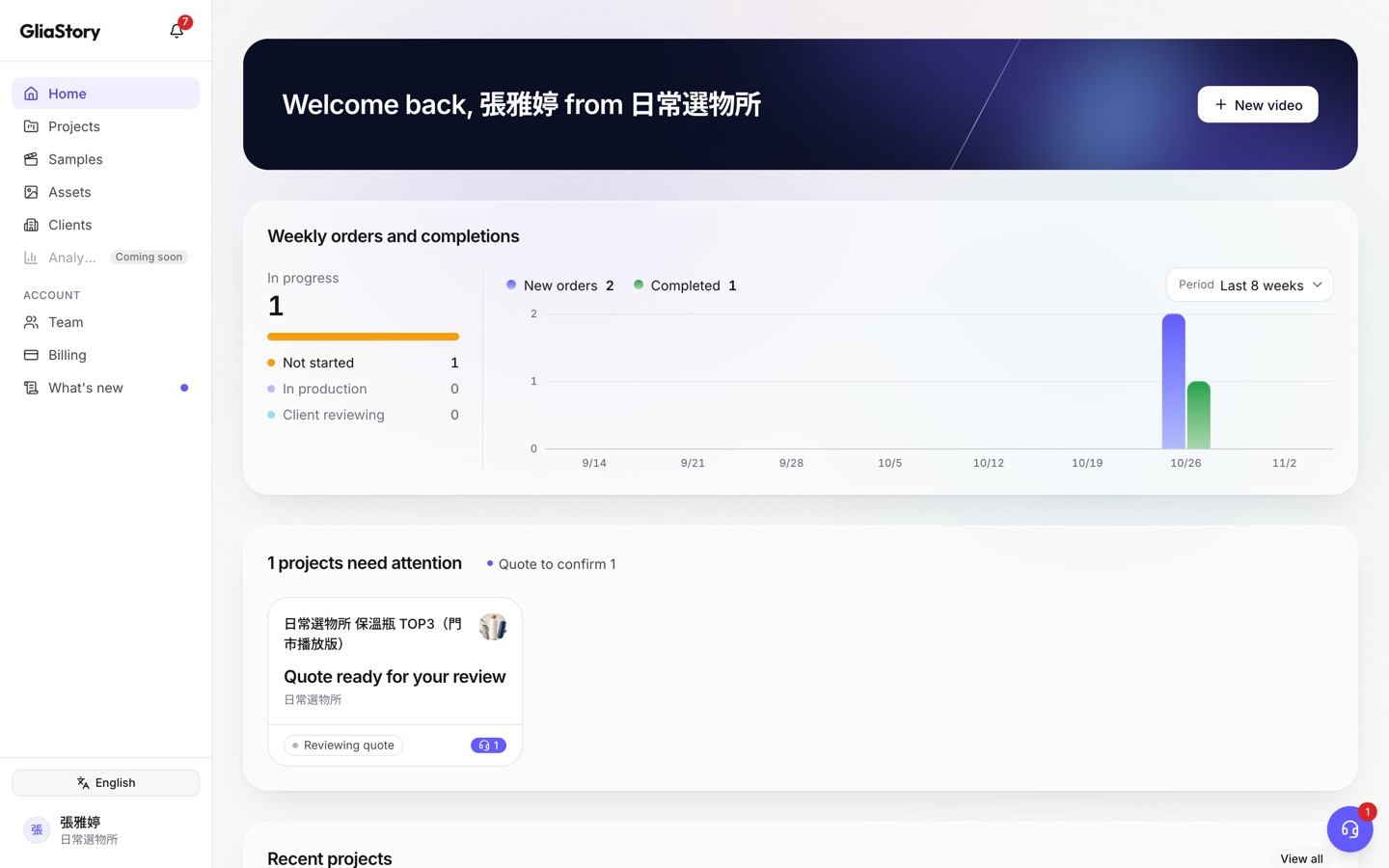
- “New video”: start a new project.
- “Weekly orders and completions”: how many of your ordered films are “Not started”, “In production” or “Client reviewing”, and how many were ordered and completed each week.
- “N projects need attention”: projects waiting for you. Each card says the next step (for example “Quote ready for your review”); click it to go to that stage.
- “Recent projects”: projects changed most recently. “View all” goes to the “Projects” page.
- The sidebar also has “Samples”, “Assets”, “Team” and “Billing”; the bell icon is notifications.
Start a project
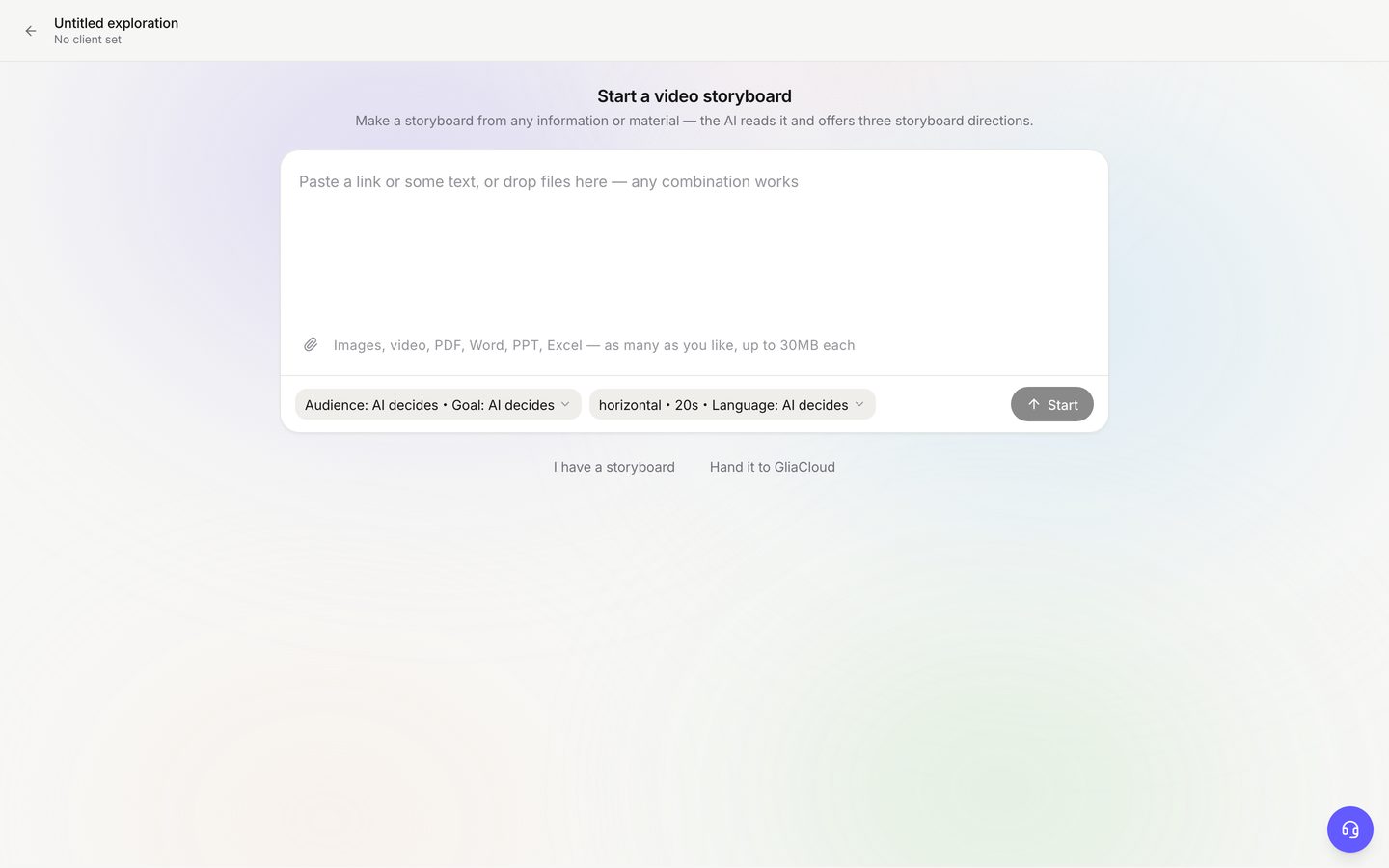
- You have materials: paste a product URL or some text, or drop in files, choose the audience and format, and click “Start”. Three directions arrive in a minute or two.
- You have a storyboard: click “I have a storyboard”, paste a link or upload a PDF or images, and click “Read storyboard”. Check what was read and go straight to Storyboard.
- No time to prepare: click “Hand it to GliaCloud”, describe what you want and click “Hand it over”. The storyboard service is free and includes up to 2 rounds of changes.
Explore: pick a direction
- The “Brief summary” at the top is what the AI read from your materials. Open it with “View full brief” and correct anything wrong under “Your requests”.
- Click “Direction A”, “Direction B” and “Direction C” to compare their four sample frames and performance readiness (a check of production best practices, not a performance forecast).
- To redo one image, use “Edit” on the image. If the whole direction is off, change your requests and click “Rethink the directions with these”.
- When you've decided, click “Create the storyboard for Direction A”, then “Use this direction”.
Once you choose, you can't switch directions. To try another one, start a new project.
Storyboard: edit until it's right
- Hover over a frame and click “Edit”. Click on the image, write what to change and click “Apply these notes”; or rewrite it under “Content” on the left and click “Redraw from this”. Every version is kept, so you can always go back.
- Drag cards to reorder them, use “−” and “+” to change a frame's length, and add a frame between any two.
- If you'd rather not edit it yourself, click “Have us draw it”. It's free and includes up to 2 rounds of changes.
- When it's right, click “Approve storyboard and get quote”. You can still come back and edit after seeing the quote.
Confirm: check the quote and order
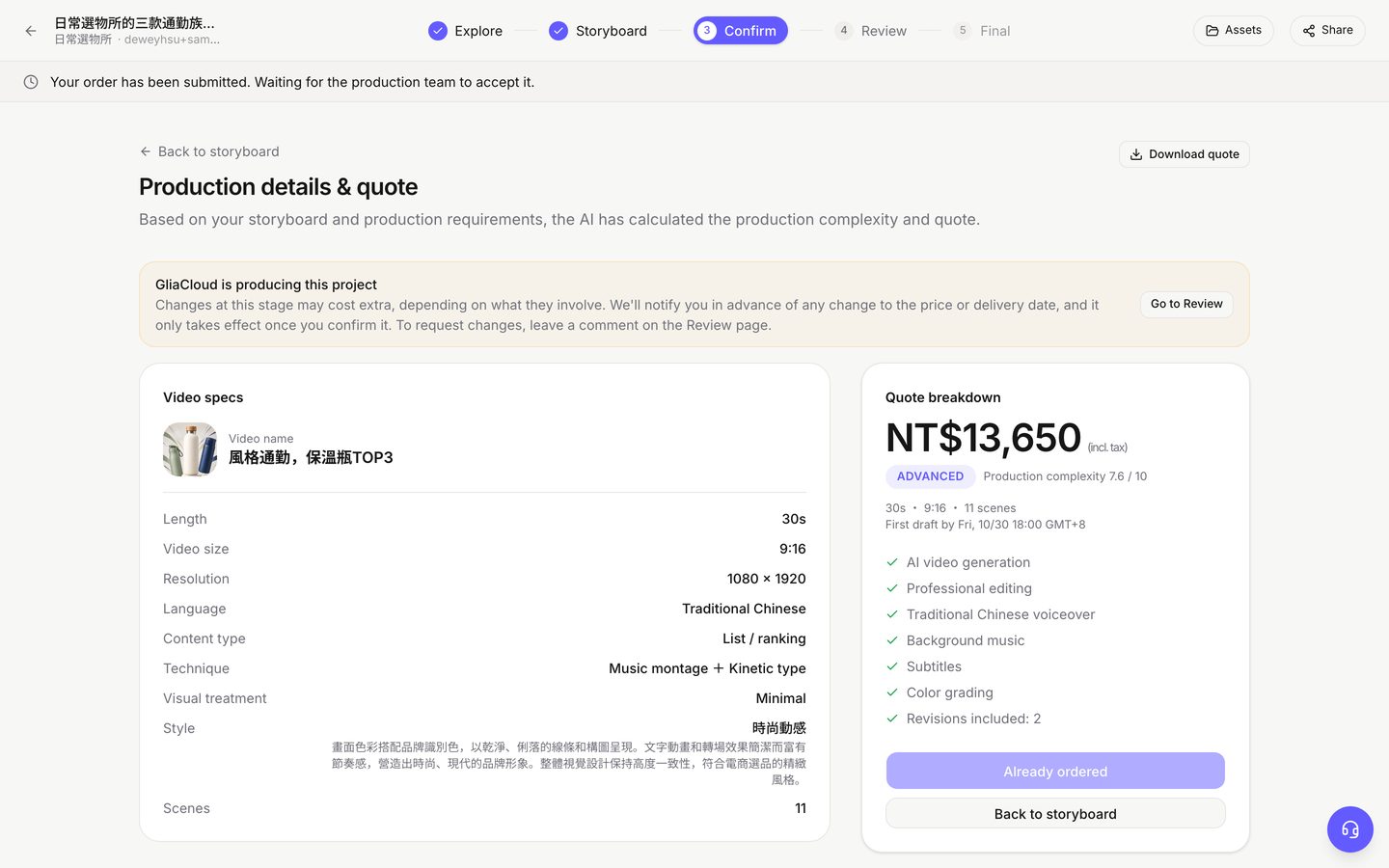
- “First draft by …” is when the first draft arrives, not the final film. In a hurry? Turn on “Rush delivery”.
- “Download quote” saves it as a PDF.
- Click “Place order”, then “Place this order”. Nothing is charged when you order: the amount goes on that month's bill, which closes at month end and is invoiced the next month.
- Members without admin rights see “Ask an admin to approve”; the order is sent once a team admin approves it.
After you order, the storyboard can't be edited. Leave a note on Review for anything you want changed.
Review: watch the draft and ask for changes
- You're notified when the first draft arrives. Move the timeline to the spot to change and use “Note at this moment” to write a note.
- Watch the whole film, then click “Send revision request” once all your notes are in.
- When the next version arrives, mark each note “Fixed” or “Not fixed”. Notes not fixed carry over to the next round.
- When you're happy, click “Approve Version N”.
Everything sent at once counts as one round of changes. Approval can't be undone; the project closes.
Final: download the film
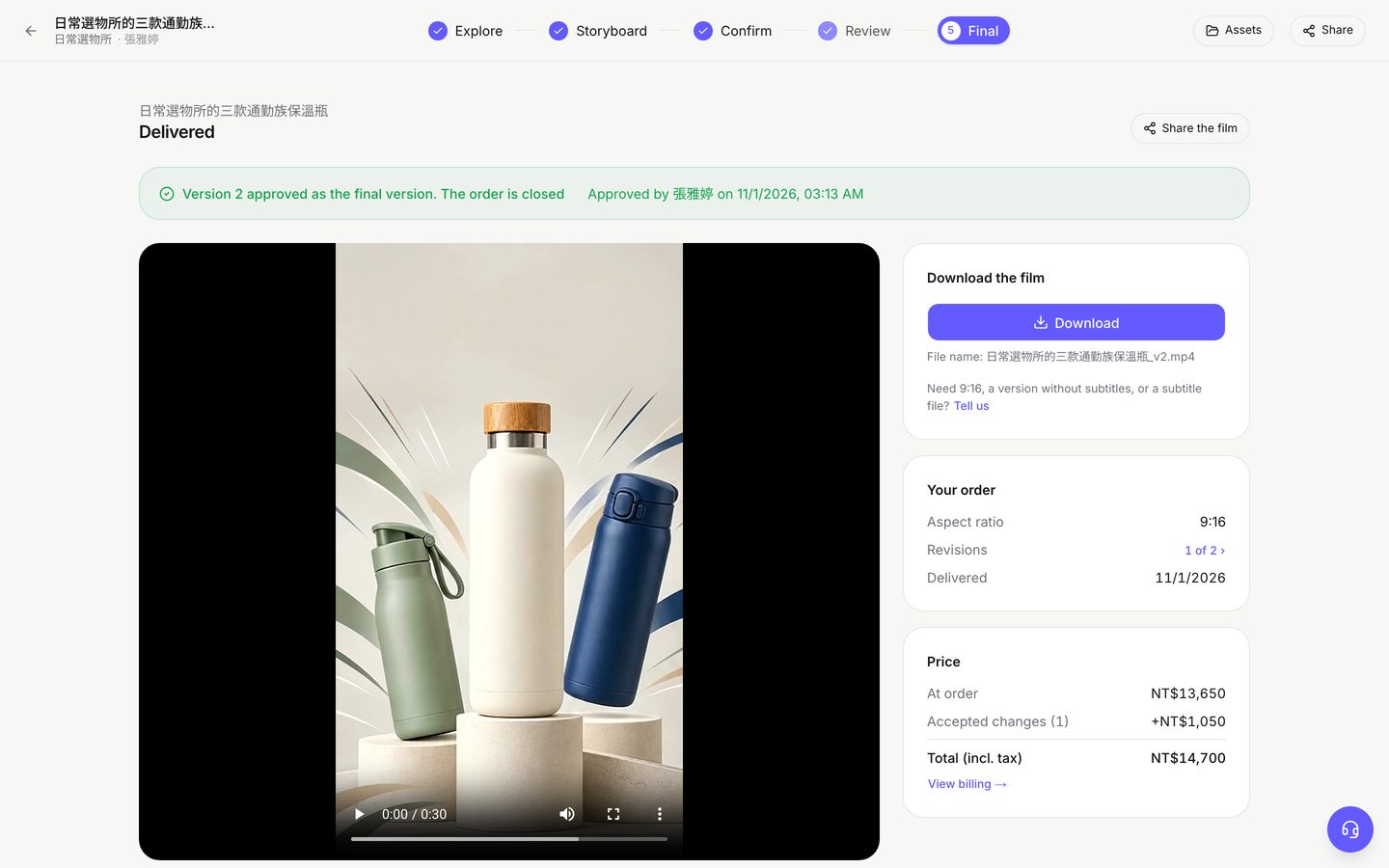
- Under “Download the film”, click “Download”, or use “Share the film” to send it to others.
- For another version, choose an option under “Make more from this film” and click “See the quote”. The storyboard and edit are reused.
| Extra version | Price (share of the original film's price) |
|---|---|
| Change the aspect ratio | 50% |
| Change the subtitle language | 20% |
| Change the voiceover and subtitle language | 35% |
Need help?
- “Contact support” in the bottom-right corner: Monday to Friday, 9:00–18:00; we usually reply within 2 business hours. You can also send a problem with a screenshot from “Report a problem”.
- Your currency follows your account's billing country: Japanese yen in Japan (consumption tax 10%), New Taiwan dollars in Taiwan (business tax 5%), US dollars elsewhere (no tax).
- For every button and setting in detail, see the full client guide.